
Master Your Photo Organization Workflow
The “Where is That Photo?!” Nightmare
We’ve all been there. A client sends a frantic email asking for "that one sunset shot" from three months ago, or you’re finally ready to post a 2025 recap to Instagram. Suddenly, you’re staring at a digital mountain of 10,000 unorganised files, scrolling until your eyes blur, praying you’ll stumble across the right thumbnail.
Most photographers treat Adobe Lightroom like a messy junk drawer. You toss photos in, "manual" collections get outdated the second you import new work, and finding your best shots feels like a part-time job you never applied for.
But there is a better way.
The secret isn't spending more time organizing; it’s spending zero time on it. By switching from manual collections to Smart Collections, you can turn Lightroom into a self-cleaning oven. Whether it’s automatically surfacing your 5-star shots from the last 30 days or instantly filtering your "to-edit" queue, Smart Collections do the heavy lifting so you can get back to what actually matters: shooting.
In this guide, I’m going to show you my "sustainable" naming system and the exact step-by-step rules to build a catalog that finally works for you.
The Secret to a "Forever" Catalog: Sustainable Naming
If you’ve ever looked at a collection named "Best Photos" and thought, "Best photos from when? Best for what?"—you’ve hit the wall of manual organization.
A sustainable naming convention is the backbone of a Smart Collection. It ensures that as your catalog grows from 1,000 to 100,000 photos, your sidebar stays clean and your brain stays sane. Here is the system I use to keep everything in its right place.
1. The Power of Prefixes
Lightroom sorts your collections alphabetically. If you don't use a prefix, your "To-Edit" folder will be buried under "Travel Photos." By using bracketed prefixes, you force Lightroom to group similar tasks together.
| Prefix | Purpose | Example |
|---|---|---|
| [WORK] | Active taskas an pending edits | [WORK] 0-stars To Process |
| [BEST] | High-rated photos and portfolio picks | [BEST] 5-stars Current Year |
| [CLIENT] | Specific shots ready for delivery | [CLIENT] Final Selects |
| [SYSTEM] | Technical cleanup and maintenance | [SYSTEM] Missing Keywords |
2. The "Five-Year Rule"
When naming a Smart Collection, ask yourself: "Will I know exactly what is in here five years from now?" * Bad Name: "My Favorites"
Sustainable Name: [BEST] 4+ Stars - Last 90 Days
The second name tells you the rating (4+ stars) and the timeframe (90 days). It’s specific, it’s automated, and it never needs to be renamed.
3. Why It Matters for Maintenance
The biggest difference between a regular collection and a Smart Collection is maintenance. A regular collection is a manual bucket; a Smart Collection is a smart filter. With a sustainable naming system, you set the rules once, name it clearly, and never touch it again. The photos flow in and out based on your star ratings and keywords—not your manual labor.
Step-by-Step: Building Your "Rolling" Portfolio
The "Best of the Last 3 Months" is my favorite Smart Collection. It’s a dynamic window into your most recent wins. Instead of digging through folders, your best work from the last 90 days is always waiting for you.
Step 1: Create the Container
First, let’s use that naming convention we talked about.
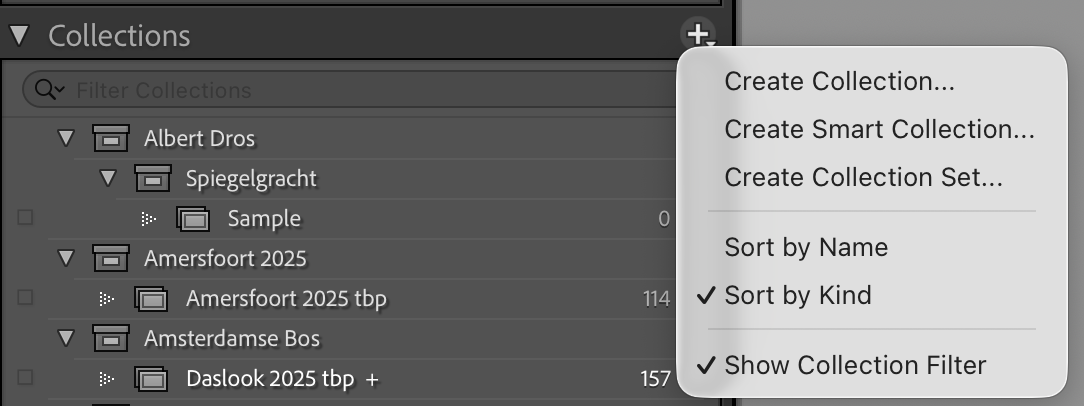
In the Collections panel, click the + icon and select Create Collection Set.
Name it [PORTFOLIO]. This is the "drawer" where all your best-of collections will live.
Step 2: Set the "Smart" Rules
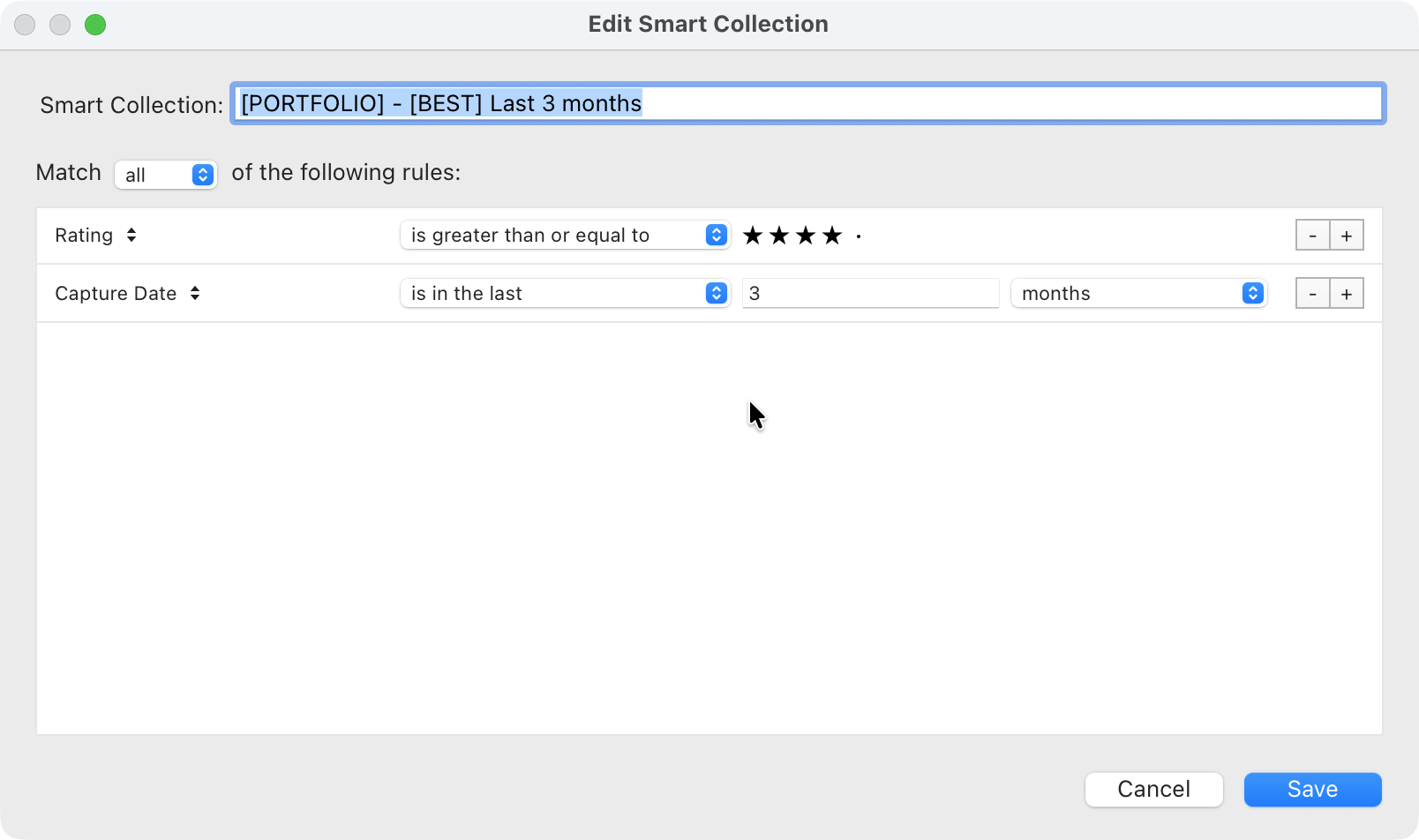
Right-click your new [PORTFOLIO] set and select Create Smart Collection.
Name: [BEST] Last 3 Months
Inside Collection Set: [PORTFOLIO]
Now, set the rules. Make sure the dropdown says Match "All" of the following rules:
| Rule Type | Logic | Value |
|---|---|---|
| Rating | is greater than or equal to | 4 stars |
| Capture Date | is in the last | 3 months |
| Keywords | contains | Portfolio |
Step 3: Let Lightroom Do the Maintenance
This is where the magic happens.
If you star a photo from yesterday as a "4," it instantly appears here.
Once a photo turns 91 days old, it automatically "falls out" of this collection.
You don't have to move a single file. Your "Recent Best" stays fresh without you lifting a finger.
Pro-Tip: The "To-Edit" Smart Collection
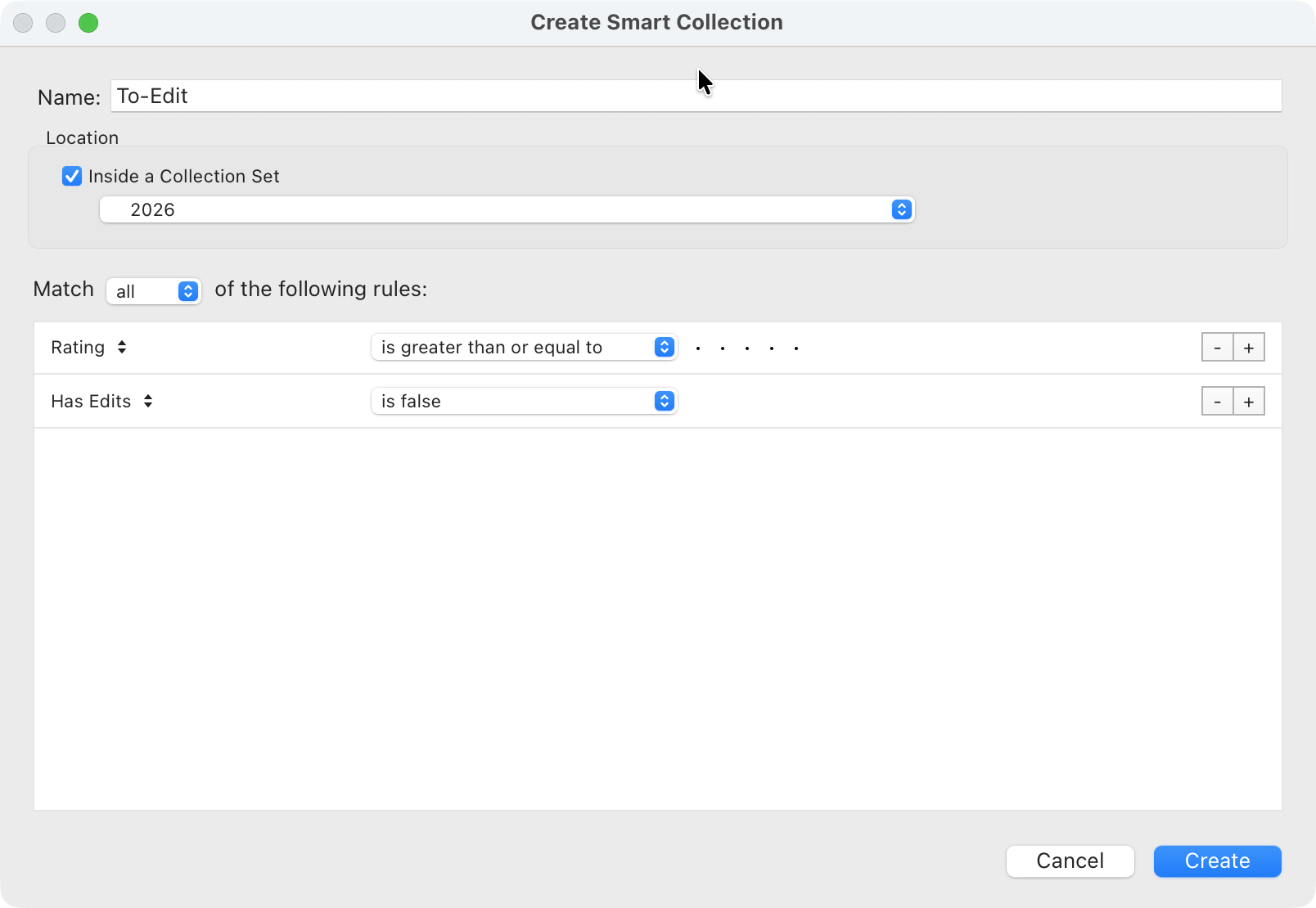
You also mentioned using Collection Sets for photos you still need to edit. To keep your workspace clean, create a Smart Collection with these rules:
Rating | is | 0 Stars (The photos you haven't judged yet)
Has Edits | is | False
This creates a "To-Do List" that shrinks every time you finish a photo. It’s the ultimate way to stay on top of your workload
Conclusion: Reclaim Your Photography Workflow
Gone are the days of endless scrolling and frantic searches for that one perfect shot. By embracing Smart Collections and a sustainable naming convention, you’re not just organizing your photos; you’re automating your entire workflow. Imagine clicking one button and instantly seeing your top-rated photos from the past three months, or having a crystal-clear queue of every photo that still needs your artistic touch.
Smart Collections aren’t just a convenience; they’re a professional necessity. They transform Lightroom from a digital dumping ground into a powerful, self-maintaining assistant, freeing up your time to do what you love most: capturing incredible images. Start building your smart collections today, and finally, take control of your photography catalog.